Compass app - Accurate Compass
- 4.2
- Rating
- 10.00M
- Installs
- Free
- Price
 Analysis by App-foxy
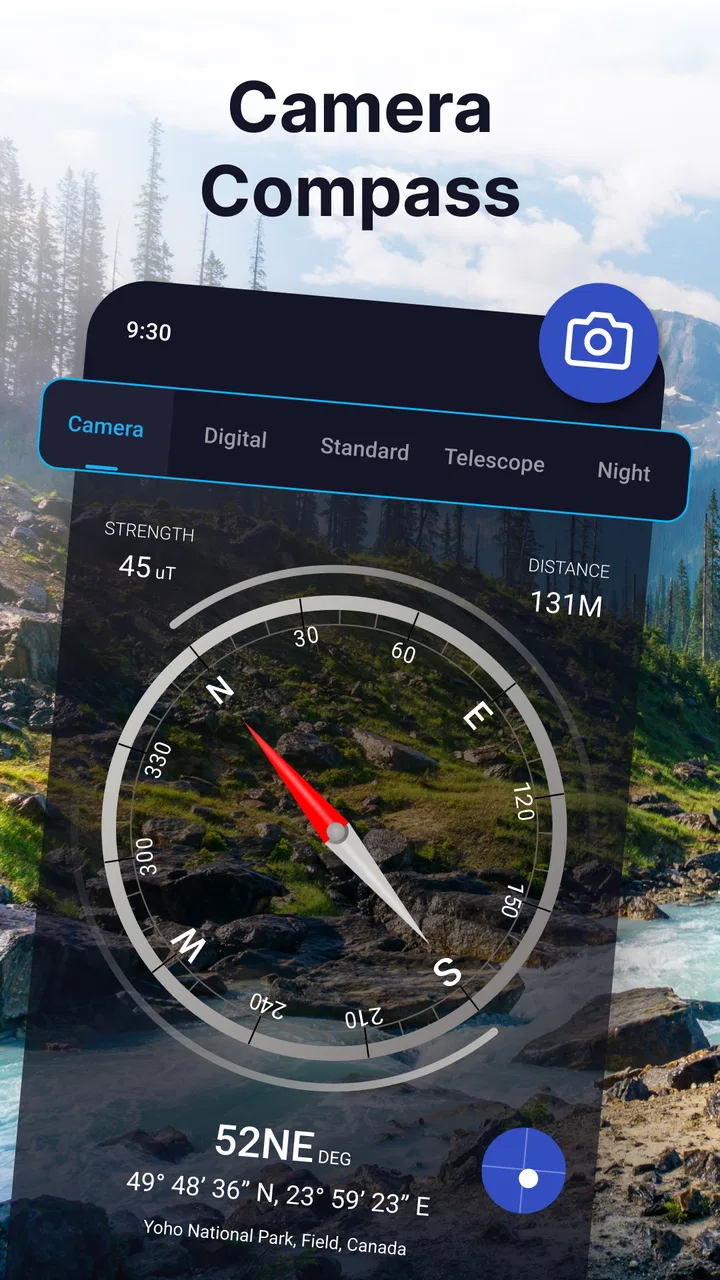
If you want a straightforward way to check direction without opening a full navigation suite, Compass app - Accurate Compass is built around that single task. I found it easy to understand at a glance: the screen is meant to help you identify north and orient yourself, rather than plan a route, search for places, or guide you turn by turn. That focused approach is its main appeal.
This is a free Maps & Navigation app from Battery Stats Saver, with an Everyone content rating. It has reached over ten million installs and holds a 4.2 average from around sixty-one thousand ratings, so it is clearly familiar to a large Android audience. The current release is version 3.1.3, and it supports devices running Android 5.0 or later.
What to expect from this focused compass
The first thing I would tell a new user is not to treat this as a replacement for Google Maps or another complete navigation service. Its job is much narrower. When I need to know which way I am facing, a dedicated compass can be quicker than waiting for a map to load or interpreting a route screen filled with extra information.
You May Also Like

 Blood Strike: 2.5 Anniversary
Blood Strike’s Loadouts Turn Every Drop Into a Tactical Gamble
A close look at Blood Strike’s custom loadouts: how fast access to signature weapons reshapes its battle royale rhythm, rewards preparation, and narrows the gap between fights.

 Pandora - Music & Podcasts
Pandora’s Music Is Easy to Start, but Harder to Recover
Pandora’s strength is its low-effort path from a seed to a station. Its weak spot is how much confidence it asks you to place in connection, setup, and quiet recovery.

 8 Ball Pool
 Is Built on Rivalries, Rematches, and Routine
A close look at the rivalries, rematches, shared routines, and unanswered safety questions that turn a quick pool match into a persistent mobile community.

 Samsung Music
’s Quiet Strength Is Playing What You Already Own
Its reach comes less from spectacle than from dependable access to a personal library. That simplicity is both the app’s strongest retention engine and its ceiling.

 AccuWeather: Weather Radar
AccuWeather Review: A Quick, Clear Forecast for Everyday Decisions
For everyday plans, the best forecast is the one you can understand quickly. AccuWeather makes rain timing, radar, and local conditions easy to act on, with a few trade-offs.

 Hill Climb Racing
Why Hill Climb Racing Still Turns Crashes Into One More Run
A tiny car, a bumpy hill and one more upgrade: Hill Climb Racing keeps resurfacing because its simple chaos makes every near-miss feel personal.
More From Our News Desk



That makes it useful in situations where I already know my destination but need orientation. For example, if I step out of a station in an unfamiliar neighborhood, I can use the compass to work out which street direction matches the route I have in mind. It can also help when setting off on a trail, checking the direction of a view, or explaining to someone whether they should walk north, south, east, or west.
The store describes it as simple and easy to use, and that description matches the basic experience. I did not approach it as a feature-heavy instrument. Instead, I looked for a clear reading, a quick start, and enough confidence to make a practical decision. On those terms, it makes sense for casual orientation and everyday reference.
The important expectation is simple: this app shows direction, but it does not turn an uncertain journey into a complete navigation plan. If you need live traffic, public transport details, saved places, spoken instructions, or a route recalculated around road closures, you will still want a full navigation app.
Who will get the most from it
I think it suits people who want a lightweight compass on an older Android phone, travelers who occasionally need basic orientation, and anyone who prefers a single-purpose screen over a crowded map interface. It can also be handy for outdoor activities where the immediate question is “which way is north?” rather than “what is the fastest route to this address?”
It is less suitable for someone who expects professional surveying accuracy, detailed hiking navigation, or a dependable substitute for a physical compass in demanding conditions. A phone compass depends on the device’s sensors and on how the phone is held and used. That is a practical limitation of this type of tool, not something a clean interface can remove.
From installation to a useful first reading
I’d begin by treating the first reading as a quick orientation check, not a verdict: choose an open spot, hold your phone level, and compare the direction with a street or landmark you already know. That gives you a useful baseline for your own device before you need the compass somewhere unfamiliar. Next, I’ll look at how to turn that first check into a repeatable, practical habit.
Start with a calm first check
After installing the app, I recommend opening it somewhere away from obvious sources of magnetic interference. A desk crowded with electronics, a car, a metal railing, or a magnetic phone accessory can make a compass reading less trustworthy. This is the sort of detail that matters more than spending time exploring menus.
Hold the phone flat and give the display a moment to settle. New users often rotate the handset quickly and assume the first direction shown is final. I get better results by keeping the phone level, turning my whole body slowly, and watching whether the indicated direction behaves consistently. That small habit makes the reading easier to interpret.
If the direction seems to jump or feels wrong, move a few steps away from nearby metal objects and try again. I would also remove a magnetic mount or place the phone away from a bag clasp before deciding that the app is inaccurate. A compass is especially sensitive to the environment, so checking the surroundings is part of using it properly.
How to reach the first meaningful success
The first useful test is not simply seeing a letter for north. I suggest choosing a visible landmark, such as a church tower, a hill, or the end of a street, and checking its direction with the app. Then walk a short distance while keeping the phone level and compare the reading with the landmark’s position. This gives you a practical sense of how the display translates into the real world.
Another good exercise is to stand outside your home and identify the direction of a familiar road. Once you know that, you can use the compass to understand the orientation of nearby streets without relying entirely on a map. This is a better first success than testing it indoors, where furniture, appliances, and structural metal may complicate the result.
When I use a compass for a quick decision, I do not stare at it continuously while walking. I check the direction, look up, choose a landmark, and move. That workflow is safer and more natural than trying to navigate every step from a small screen. The app works best as a reference tool that supports your awareness, not as something that replaces it.
A practical everyday scenario
Imagine arriving at a large outdoor market in a town you do not know. You have a map open with a meeting point, but the surrounding stalls make it difficult to tell which exit faces the right way. I would close the map briefly, use the compass to identify the direction of the road I need, and then match that direction to the visible exits. Once I am moving along the correct street, the map becomes useful again for the detailed part of the journey.
This two-step method is one of the app’s strongest use cases. The compass answers the immediate orientation problem, while a map handles addresses and route choices. Trying to make one tool do both jobs can create unnecessary confusion. Here, the dedicated reading is valuable precisely because it does not compete with a full map for attention.
Understanding the display without overthinking it
A compass reading is easiest to use when you connect it to a direction you can see. Instead of repeatedly checking the screen, turn until the direction you want lines up with your intended path, then use buildings, roads, or landscape features to maintain that heading. This reduces the chance of drifting because you are constantly comparing the phone with the environment.
I also prefer taking a second reading after changing location. If the direction remains broadly consistent, I feel more comfortable acting on it. If it changes sharply after moving near a vehicle or structure, I treat that as a warning to reposition rather than immediately blaming the app. This simple cross-check is particularly useful for first-time users.
Common confusion and realistic limitations
The most common misunderstanding is expecting a compass to know where you want to go. It does not identify the best road, tell you whether a path is open, or explain which turn comes next. It only helps establish orientation. You still need your own judgment, a map, or local signs to connect that direction with a destination.
Another source of confusion is assuming that a phone’s compass will behave like a traditional magnetic compass in every setting. Electronic interference can affect the reading, and holding the device at an angle can make the result harder to interpret. I would never use a single quick reading as the only basis for a safety-critical decision.
There is also a difference between knowing north and knowing your exact position. This app can help you face a direction, but it does not by itself tell you where you are on a trail or how far away a destination might be. For hiking in unfamiliar terrain, I would pair it with an offline map, marked route, or physical compass rather than rely on the compass screen alone.
Where it differs from the usual alternatives
Compared with a full map application, this tool is less informative but faster to understand for one narrow question. A map gives context, landmarks, addresses, and routes; the compass gives an immediate directional reference. I see them as complementary rather than direct substitutes.
Compared with a browser-based compass, a dedicated app is more convenient because it is already organized around the phone’s orientation screen. You do not have to search for a suitable page or work around a busy web layout. The trade-off is that a browser or map service may offer more surrounding context once you need to move beyond basic direction.
Compared with a physical compass, the phone is easier to carry because it is already in your pocket, but the physical instrument can be preferable for serious outdoor use. A traditional compass does not depend on a phone battery or a sensor behaving well near electronic equipment. For casual city orientation, the app is more convenient; for demanding expeditions, I would want a backup.
Costs, version, and what to consider before relying on it
The app is free to install, with in-app purchases ranging from ninety-nine cents to ninety-nine dollars and ninety-nine cents per item. That makes it easy to try without an upfront purchase, but I would still check any purchase screen carefully before confirming anything. For a basic compass user, the important question is whether the free experience already covers the simple directional task you need.
Because the developer is Battery Stats Saver rather than a name associated with mapping services, I would keep my expectations centered on the compass itself. The app’s popularity suggests that many people find the basic purpose worthwhile, but popularity does not change the physical limitations of phone sensors. I would test it in the places where I plan to use it before depending on it for a longer trip.
Android compatibility begins with version 5.0, which gives it a broad potential device range. On an older phone, I would pay particular attention to how steady the reading feels and whether the handset’s sensor behaves consistently. The app can be a useful option for keeping an older device practical, but the phone’s hardware remains part of the overall experience.
Small habits that improve the experience
My first tip is to establish a known direction before leaving home. If you can compare the app with a familiar street or a reliable map, you will notice problems sooner than if your first test happens in an unfamiliar forest. This is also a good way to learn how your particular phone responds when held flat.
My second tip is to use landmarks as anchors. Once the compass points toward the direction you need, choose something visible in that line and walk toward it. Repeating that process is less tiring than trying to hold the phone perfectly aligned for an entire journey, and it keeps your attention on your surroundings.
My third tip is to separate orientation from route planning. Use this app to answer “which way should I face?” Then switch to a map for “which street should I take?” That division makes the experience clearer and avoids the disappointment of expecting a dedicated compass to provide features it was not designed to provide.
Finally, I would treat inconsistent readings as a cue to investigate the environment. Move away from metal, keep the phone level, slow down your rotation, and compare the result again. If the reading still does not make sense, choose another navigation method rather than forcing the app to support a decision it cannot reliably support.
My recommendation for a first-time user
I recommend Compass app - Accurate Compass if you want a free, focused way to check direction on an Android phone and you understand the difference between orientation and navigation. The path to value is quick: install it, test it outdoors in a familiar place, keep the phone level, and use a visible landmark to confirm what the reading means.
I would skip it as a primary tool if your needs involve route planning, live travel information, detailed trail guidance, or professional-grade direction finding. In those cases, a full navigation app, an offline mapping tool, or a physical compass may be a better choice. For everyone else, its narrow purpose can be a strength rather than a weakness.
My final view is that this is a practical utility when I need a directional answer without the distraction of a complete map. It does not try to solve every navigation problem, and that keeps the first interaction reassuringly simple. Used with sensible checks and realistic expectations, it can become a handy companion for everyday orientation, short outdoor activities, and those moments when I know where I want to go but need help deciding which way to face.
FAQs for Compass app - Accurate Compass
01What features does Accurate Compass offer?
Accurate Compass provides precise directional information using your device’s built-in sensors. It offers features such as magnetic and true north readings, customizable display options, and a user-friendly interface. The app also includes a level gauge and support for both portrait and landscape modes, making it versatile for various navigation needs.
02How accurate is the compass in this app?
The accuracy of the Accurate Compass app depends on your device's sensors. It typically provides precise readings, but it's essential to calibrate your device regularly by moving it in a figure-eight motion. Nearby magnets or metal objects can also affect accuracy, so ensure a clear environment when using the app.
03Is Accurate Compass free to use?
Accurate Compass is available as a free download, offering basic compass functionalities without charge. However, it may include in-app purchases or ads to unlock additional features or remove advertisements. Checking the app's store listing for specific details on pricing and features is recommended.
04Does Accurate Compass work without an internet connection?
Yes, Accurate Compass functions offline as it relies on your device's built-in magnetometer and sensors rather than internet connectivity. This makes it a reliable tool for outdoor activities where network access might be limited, ensuring you always have access to directional guidance.
05How do I resolve issues with the compass not pointing correctly?
If Accurate Compass is not pointing correctly, try recalibrating your device by moving it in a figure-eight pattern. Ensure no magnetic or metallic interference is nearby, and check that your device’s sensors are functioning correctly. Restarting the app or your device can also help resolve any temporary glitches.
Pros
- Highly accurate and reliable navigation tool.
- Simple and intuitive user interface.
- Supports multiple coordinate systems.
- Lightweight and fast performance.
- Offline functionality available.
Cons
- Ads can be intrusive at times.
- Limited customization options.
- No advanced features for experts.
- May drain battery quickly.
- Requires device to have a magnetometer.

Compass app - Accurate Compass
Gallery